Signing in and two-factor login
Screen: Sign in, address /login at blackbox.business.
Your login is the phone number you registered with in Blackbox Business — not your e-mail.
Signing in
| № | Action |
|---|---|
| 1 | Enter the phone number in international format |
| 2 | Enter the password |
| 3 | Press Sign in |
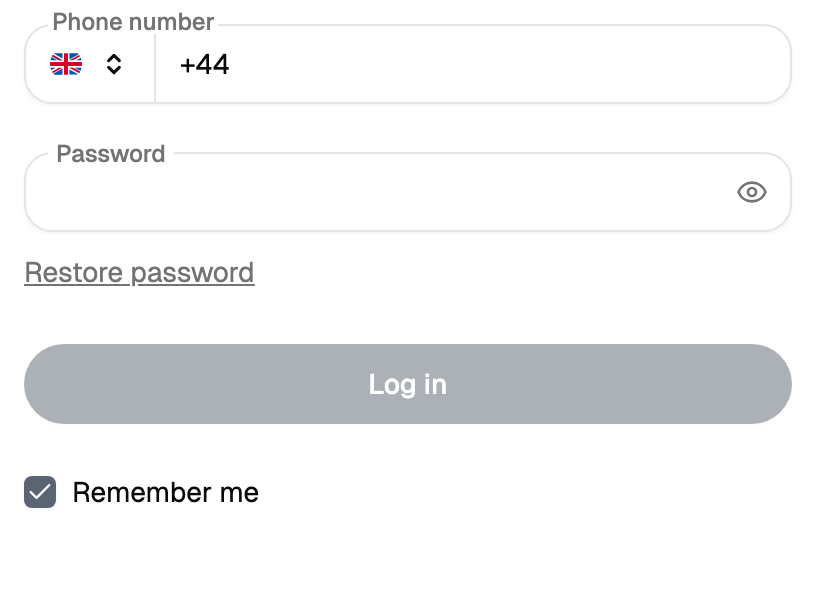
No account yet? Registration is on the same screen, on the Sign up tab.
If the phone number is unknown or the password is wrong, the cabinet shows the same message in both cases. This is deliberate: otherwise the form would tell a stranger which numbers are registered.
When the cabinet asks for something besides the password
There are two reasons, and they look almost the same on screen.
You have not signed in for a long time. After a long pause the cabinet sends a code by SMS and asks for it once — a one-off confirmation that the number is still yours.
You turned on two-factor authentication yourself. Then the cabinet asks for a code every time, and it comes from the method you set up.
Separately: after several wrong passwords in a row the cabinet guards the account and asks for a code from SMS instead of the password. The sign-in form also keeps its own pace — after a burst of attempts it asks you to wait, and waiting is what helps.
Two-factor authentication
Set up on the Settings → Password and security screen, address
/settings?tab=password-and-security. Three methods, and they can be combined.
| Method | What it is | Where the code comes from |
|---|---|---|
| Authentication program | An app on your phone (any TOTP app) | The app itself, which keeps the current code up to date |
| Security key | A hardware key or the built-in one on your device | The key itself, no code to type |
| Backup codes | A short list of one-time codes | The list you saved when you turned them on |
Backup codes are for the moment when the first two methods are out of reach — the phone is lost, the key is at home. Each code works once and disappears after use. The set is issued in one go and shown once; when the codes run out, generate a new set.
When you switch Authentication program on, the cabinet creates the secret immediately — the QR code you see is already tied to your account. Finish in the same window: scan the code and type the one the app shows, and two-factor authentication starts working the way you expect.
If the window was closed halfway, sign in with a backup code and set the method up again from the beginning. When the backup codes are out of reach too, support restores access.
Switching on any of the three methods ends all your other sessions. This is intended: if someone else was signed in to your account, they are signed out at that moment. You stay in the current tab.
Choosing a different method at sign-in
If two-factor authentication is on and the usual method is out of reach, the sign-in screen lets you switch to another one — for example, from the app to a backup code. Methods you have already set up are offered there.
If you have lost the password
On the sign-in screen, press Restore password.
| № | Action |
|---|---|
| 1 | Enter the phone number of the account |
| 2 | Enter the code that arrives by SMS |
| 3 | Wait for the second SMS — it contains a new password |
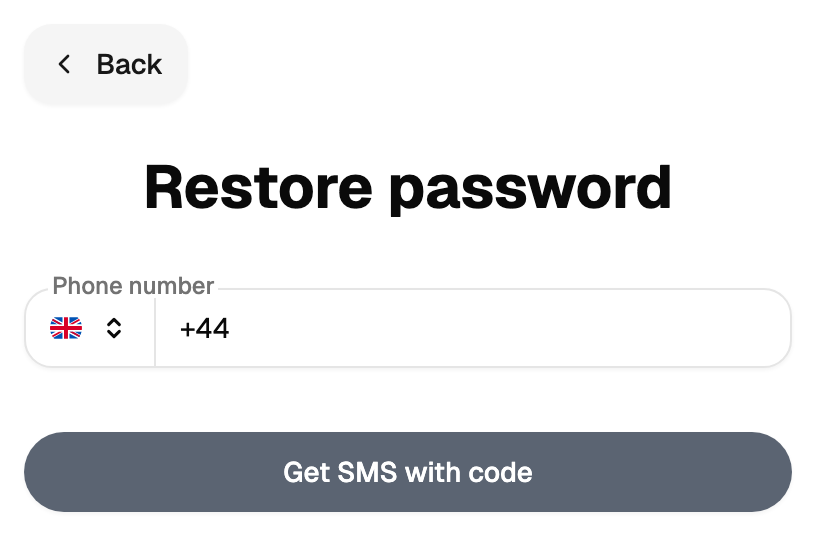
The password for this step is generated for you and comes by SMS. Sign in with it and set your own in the settings.
If the number is not registered, the screen still says the request went through. The form deliberately keeps quiet about which numbers exist.
Changing the password
Settings → Password and security. You are already signed in, so the cabinet asks for the new password only.
The requirements are listed next to the field: the length, upper and lower case, a digit and a special character, varied characters, and a password without a date inside. The form saves a password that matches them.
Where to see who signed in
Settings → Access log, address /settings?tab=visits. Web sign-ins, API calls and SMPP
connections, with time and address — the log keeps the history for you to read. If you see
a stranger there, change the password and switch on two-factor authentication: changing the
methods ends the other sessions.
How long the session lasts
The cabinet remembers the sign-in for a while, and after that it asks for the password again. Sign out in the user menu ends the session straight away.